Connecting the Application
Once the application is installed, you need to connect Eagleview to Salesforce by following these steps:
- Open App Launcher in Salesforce.
- Select the Eagleview for Salesforce app.
- Navigate to the Setup Assistant tab.
note
If you don’t have Eagleview account navigate to signup.eagleview.com to create one.
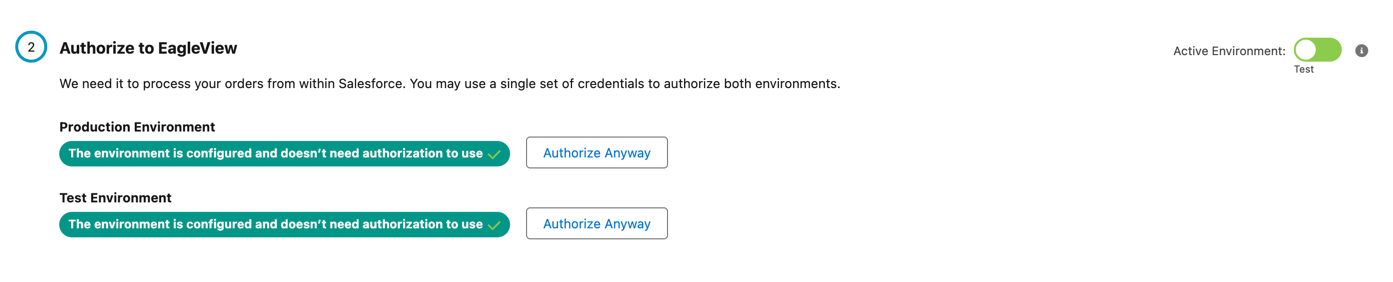
- In the Authorize to Eagleview section, сlick the Authorize button next to the desired environment - Production or Testing. User will be redirected to the Eagleview login page.
- Enter your Eagleview username and password. After successful login, you’ll be redirected back to Salesforce.
- The connected environment will now be highlighted in green.
- Use the Active Environment toggle to select which environment (Production or Testing) should be used for orders.
Important:
While the Eagleview Admin permission set grants access to the Setup Assistant page, authorization must be performed by a user with System Administrator profile. This is because the authorization process requires elevated permissions that cannot be included in a managed package. Make sure a user with full System Administrator rights completes the initial authorization step.