Retrieving a Report
Eagleview reports are retrieved in real time as soon as they are ready.
Once the report is processed and delivered by Eagleview, the system automatically pulls it into Salesforce, attaches it
to the order record, and sends an email notification to the order owner.
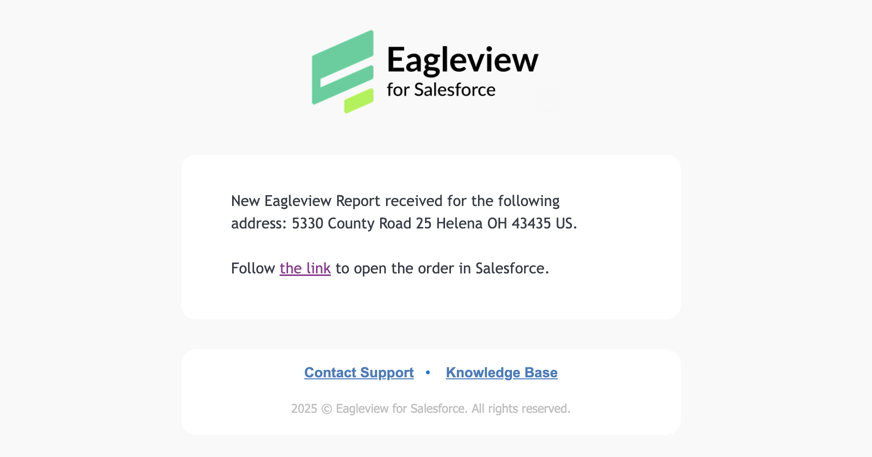
However, if automatic retrieval is not configured in your org, reports can still be retrieved manually from either the Eagleview Order record or the related Account, Contact, or Opportunity record.
Manual Report Retrieval
If real-time retrieval isn’t enabled in your Salesforce org, follow these steps to get the report manually.
Retrieving from the Eagleview Order Record
- Open the Eagleview Order you want to retrieve.
- Click Eagleview Services.
- Select Get Ordered Report.
- Click Proceed.
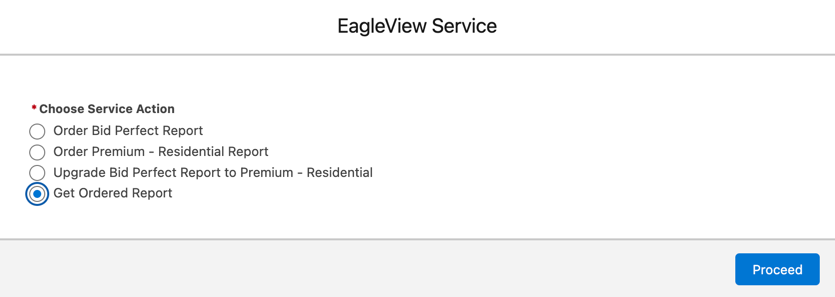
Retrieving from Account, Contact, or Opportunity
- Open the related Account, Contact, or Opportunity record.
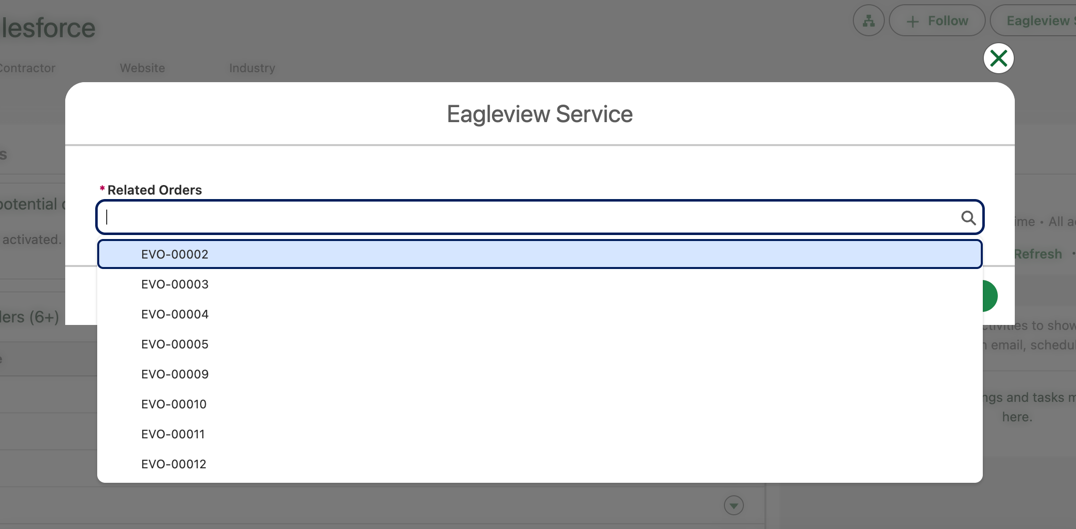
- Click the Eagleview Services quick action.
- Select Get Ordered Report.
- Choose the Eagleview Order you want to retrieve.
- Click Proceed.
What Happens After Retrieval
If the report is not ready
A warning message will notify you that the report is still being processed.
If the report is ready
The system retrieves the file and attaches it to the record.
You’ll see a success notification, and the report will appear in the Files related list.
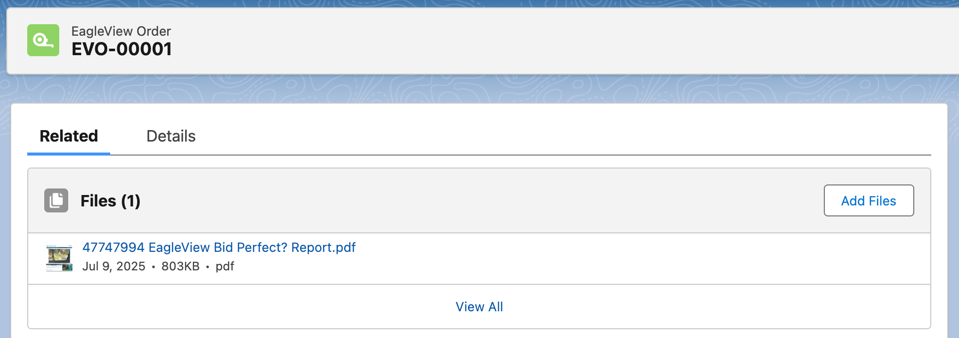
The order record is then updated with the latest processing details, including:
- Status ID
- Sub-Status ID
- Status Description
- Sub-Status Description

If retrieval is successful, additional report metrics will also populate on the order:
- Area
- Pitch
- Eaves
- Hips
- Valleys
- Rakes
- Ridges
- Payment Information
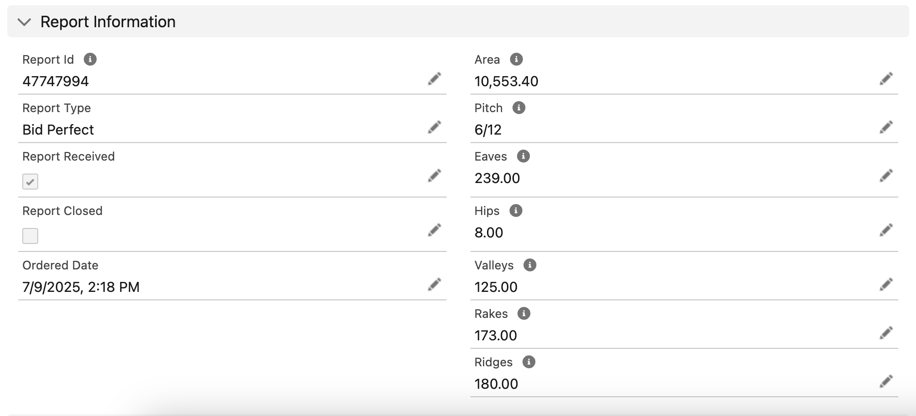
These fields help users quickly review key roofing details and billing info without opening the PDF.
Automatic Report Retrieval
When enabled, real-time webhook retrieval eliminates delays and manual steps.
Reports are automatically:
- Retrieved the moment Eagleview marks them ready
- Attached to the Eagleview Order record
- Followed by an email notification sent to the order owner
To enable automatic retrieval, ask your Salesforce Admin to complete the Eagleview webhook configuration steps (External Client App access + Public Site creation).