Upgrading a Report
You can upgrade a Bid Perfect EagleView report to a Premium – Residential report directly from Salesforce.
Note:
An upgrade becomes available only after the initial Bid Perfect report has been generated.
Upgrading from the EagleView Order Record
- Open the EagleView Order record where the Report Type = Bid Perfect.
- Click the Eagleview Services button.
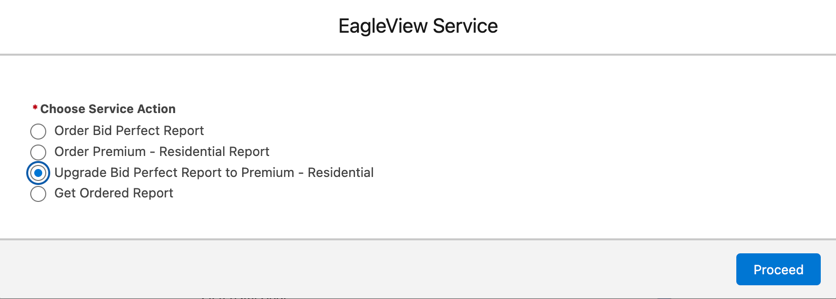
- Select Upgrade Bid Perfect Report to Premium – Residential.
- Click Proceed.
After Processing
Once the upgrade request is completed:
- A new EagleView Order record is created with the Report Type = Premium – Residential.
- The Initial EagleView Order field on the new record automatically references the original Bid Perfect order.
- The new Premium order is linked to the original order and appears in the Upgraded EagleView Orders list view.
Upgrading from a Standard Salesforce Record
You can also start the upgrade directly from the Account, Contact, or Opportunity the order is linked to.
Steps:
- Open the Account, Contact, or Opportunity record.
- Click the Eagleview Services quick action.
- Select Upgrade Bid Perfect Report to Premium – Residential.
- Choose the related Bid Perfect order you want to upgrade.
- Click Next.
Result
- A new EagleView Order record is created and is automatically linked to the original Bid Perfect order.
- The upgrade request is immediately submitted to EagleView for processing.